 EximiousSoft Logo Designer
Pro
EximiousSoft Logo Designer
Pro
EximiousSoft Logo Designer
Easily create and edit professional-looking logos or other business graphics.
$39.95
No watermark of string "Trial Version" when logos are saved to image files or printed
by using the registered version.
If you want to save your logo to an image file, need to choose "Save as Image..."
menu item from main menu bar. A dialog box is shown on screen as following screenshot.
Then click "Save..." button in it, The Windows File Selector dialog
is shown and it prompts to choose a folder, enter a new file name or choose a file
for saving logo to an image. EximiousSoft Logo Designer supports these file formats
for saving as image: JPG, GIF, BMP,
PNG, TIFF, TAG, PCX
etc.. You can open the saved graphics using any standard picture viewer (e.g. Microsoft
Paint, Microsoft Photo Editor, Adobe Photoshop) or email to someone.

Logo Deisnger provides many of the visual effects which is used to produce highly
visual impact shape grapchis.
1. Switch to "Selection" mode if not, then selects
the shape or text objects which you want to change.
Related FAQ:
How to select one or more objects at a same time?
2. Open "Drawing" category in main ribbon bar,
then go to "Effects" sub-category. Choose a render effect such as Drop Shadow,
Reflection, Outer Glow Bevel Edge,
Texture etc. or combination some of them. Then the selected objects
are shown with the render effects. Typically, each effect contains a different set
of options. You can give your own settings for them according to your needs.

|
No Effect |

|
Drop Shadow |

|
Outer Glow |

|
Bevel Edge |

|
Texture |
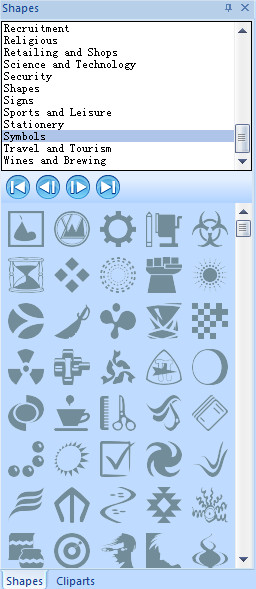
Go to "Shapes" View. If it is not visible, If not, switch to "View"
category and make the check box which named Shapes List is selected.
Then choose a suitable shape classification from the list. Find a shape which you
want to add, click on it to select and then keep left mouse button is down, then
drag it into workspace. Also Double Click on this shape for adding
it to workspace directly and it will be centered in Edit View.
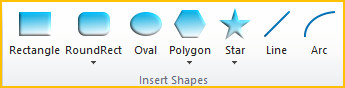
Select a shape, drag the pointer across the image frame to draw the shape until
the desired size is reached, then release mouse button.
The multiple objects are allowed to be selected at the same time in Logo Designer.
The standard Windows multiple-selection shortcuts of Ctrl+Click
and Shift+Click is supported by the program. Two ways are offered
for selecting objects.
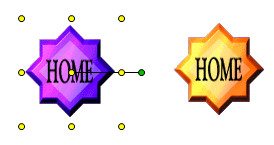
In Edit View, each visible object is shown as it should be. When an object is selected,
the handles for rotation and resize the object are shown around it, but none for
the unselected one. For example, see following screenshot: The left object is selected,
but right one is not.
1. Switch to "Selection" mode if not, then select
the shape or text objects which you want to change.
Related FAQ:
How to select one or more objects at a same time?
2. Open "Drawing" category in main ribbon bar,
then go to "Organize" sub-category. Click "Group"
tool button. This will group all selected object together so that they are can be
treated as a single object.
Notice: If you want to ungroup an group object, please click "Ungroup"
tool button.
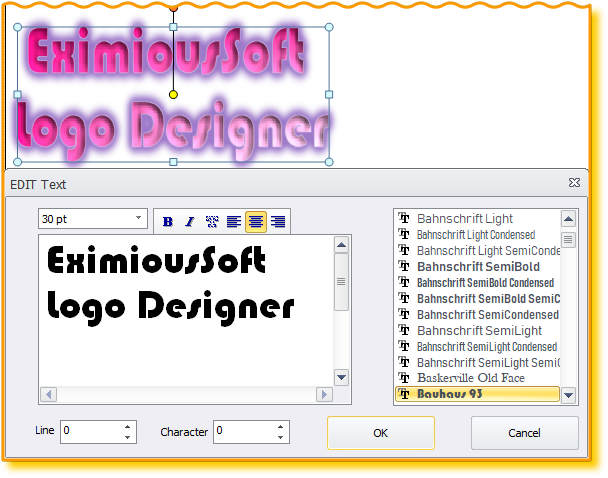
Logo Designer provides two ways to help you to edit texts.
1. If the text object is not selected, you need to select it as
flowing: If the application is not running in Select Mode currently,
click "Selection Tool" tool button on toolbar to switch. then click
the text object you want to change to select it in the edit view. Then right click
to popup context menu and choose "Edit Text..." menu item for editing.
2. Double Click on the text object in Edit View
directly for editing.
After that, A dialog box is shown as following screenshot which prompts you to edit
text visually.
1. Switch to "Selection" mode if not, then select
the shape or text objects which you want to change.
Related FAQ:
How to select one or more objects at a same time?
2. Open "Drawing" category. Go to "Fill inside"
sub-category then select a tool button for filling the selected objects; Go to "Stroke
Outline" sub-category then select a tool button for stroking the selected
objects.
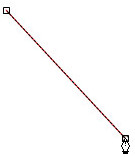
Logo Designer offers Custom Shape Tool to draw your own shapes.
Open "Drawing" category from main ribbon bar, and then click "Custom
Shape Tool" tool button.
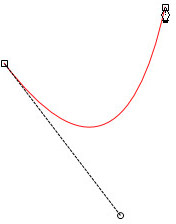
Position the Custom Shape Tool where you want the segment to begin:

|
|
|
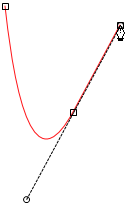
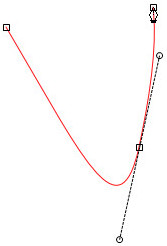
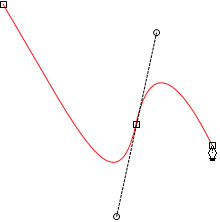
| Positioning Custom Shape Tool | Dragging the direction line | Released mouse button and moving to next point position |
|
|
|
| Starting to drag second smooth point | Dragging away from previous direction line, creating a C curve | Dragging in same direction as previous direction line, creating an S curve |
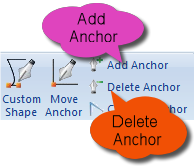
Adding anchor points can give you more control over a path, or it can extend an
open path. However, it is a good idea not to add more points than necessary. A path
with fewer points is easier to edit, display, and print. You can reduce the complexity
of a path by deleting unnecessary points.
|
|
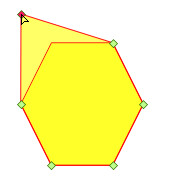
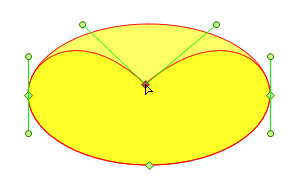
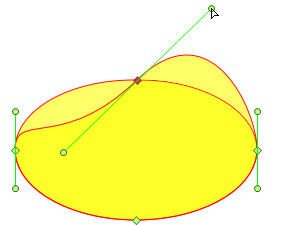
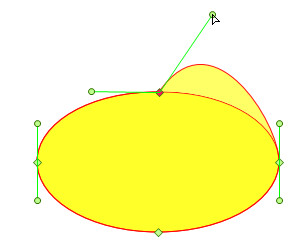
| Move straight segment | Move straight segment |
|
|
| Adjust direction hold Shift key | Adjust direction point generally |
You can edit a path segment at any time, but editing existing segments is slightly
different from drawing them. Keep the following tips in mind when editing segments:
If an anchor point connects two segments, moving that anchor point always changes
both segments.
With the Move Anchor Tool, select a curved segment, or an anchor point on either
end of the curved segment. Direction lines appear or if any are present, do any
of the following:
Easily create and edit professional-looking logos or other business graphics.

Produce high quality and impressive banner ads. web buttons and headers etc. web graphics.